• English
  • Deutsch
  • Español
  • 中文简体
  • 中文繁體
  • 日本語
  • 한국어
  • ไทย
  • Tiếng Việt
ArtPlayer logoArtplayer
ArtPlayer EditorSubtitle EditorFree Video Tools

Popular

Video Upscaler
Image Upscaler
AI Image Expander
X Video Downloader
Facebook Video Downloader

Video

Reverse Video
Video Screenshot
Remove Watermark
Change Volume
HLS to MP4
Video to HLS
M3U8 Downloader
Trim Video
Edit Metadata
Pixelate Video
Compress Video
Video Stabilizer
Flip Video
Resize Video
Adjust Video
Fade Video
Image to Video
Blur Video
Loop Video
Split Video
Video Converter
Crop Video
Rotate Video
Mute Video
Video to GIF
Filter Video
Merge Video
Add Subtitles
Add Text
Add Watermark
Add Photo
Picture in Picture
Video to Text
Blur Face
Blur Background
Green Screen
Pixelate Face
Make Thumbnail
Extract Thumbnail
Inspect Metadata
Extract Tracks
Remove Metadata
Normalize Video
Remux Video
Stop Motion
Motion Video
Color to Video
PDF to Video
Countdown Video
Boomerang Video
Split Screen Video
Speed Video
Frame Interpolation
Auto Reframe
Add Intro Image
Scene Splitter

Audio

Loop Audio
Speed Audio
Split Audio
Add Cover Art
Trim Audio
Remove Silence
Extract Audio
Normalize Audio
Convert Audio
Join Audio
Change Volume
Add Audio
Speech to Text
Text to Speech
Vocal Separation
Compress Audio
Equalize Audio
Filter Audio
Fade Audio
Change Pitch
Reverse Audio
Add Reverb
Detect BPM
Measure Loudness
Reduce Noise
Audio Visualizer

Image

GIF Upscaler
Remove Watermark
Depth Map
Old Photo Restore
Remove Background
Blind Watermark
Remove Object

Recorder

Voice Recorder
Screen Recorder
Camera Recorder
Home/Compress Video/
GitHub FeedbackDocsAbout

25MB target

Compress Video Under 25MB

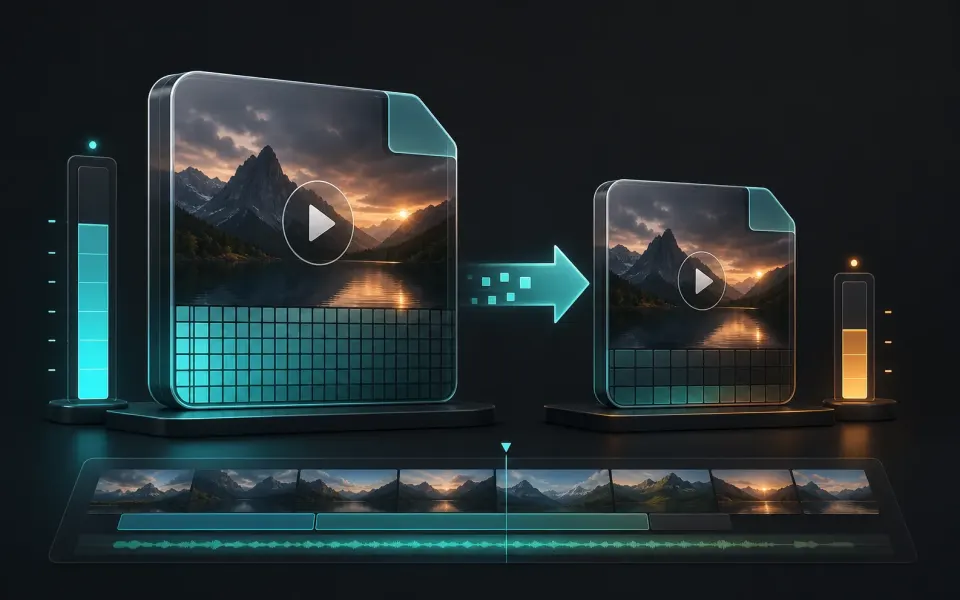
Aim for a 25MB upload target by combining compression, resizing, and trimming when needed.

Start compressing Resize video

Work toward a 25MB result systematically

There is no single preset that guarantees exactly 25MB for every source. Use the first export as evidence, then change one major size driver at a time.

01

Estimate what must change

File size is closely related to average bitrate multiplied by duration. A long clip has less bitrate available per second within the same 25MB budget, so it may need lower resolution, fewer frames, more compression, or a shorter running time than a brief clip.

  • Start with Small and measure the downloaded MP4.
  • Trim the duration if only part of the recording is needed.
  • Lower resolution when the complete timeline must be preserved.
02

Avoid repeated blind compression

Compressing an already compressed output again can accumulate blockiness, ringing, and blurred text. Return to the original source for each revised attempt whenever possible, and change the preset, dimensions, or selected range based on what the previous export showed.

  • Review faces, captions, and high-motion scenes after export.
  • Use the original source for a second attempt.
  • Allow a small margin below 25MB for platforms that calculate size differently.

How it works

Three steps to finish the browser workflow.

  1. 1

    Compress the source

    Run the video through the Small compression preset.

  2. 2

    Check the output size

    Download the MP4 and compare it with the 25MB target.

  3. 3

    Adjust if needed

    Resize or trim the video, then compress again for a smaller result.

Everything you need

Core details about privacy, browser support, output, and practical limits before you start.

Compression workflow for strict size targets

Use Small first, then resize or trim if the result remains above 25MB.

Local MP4 export in the browser

Long HD clips may need both lower resolution and shorter duration.

Companion resize and trim tools

A precise 25MB result depends on source complexity and browser export settings.

Frequently asked questions

Quick answers about privacy, output, and practical limits before you start.

Can this force every video under 25MB?

Not always. Duration, resolution, frame rate, and motion can make some videos too large without trimming or resizing.

What should I try first?

Try the Small compression preset, then lower resolution if the output is still too large.

Is this local?

Yes. The linked browser tools process the selected file locally on your device.

Related tools

Continue editing with nearby ArtPlayer tools that work with the same browser-first workflow.

Compress Video
Compress Video
Reduce video file size with simple presets and local FFmpeg processing.
Resize Video
Resize Video
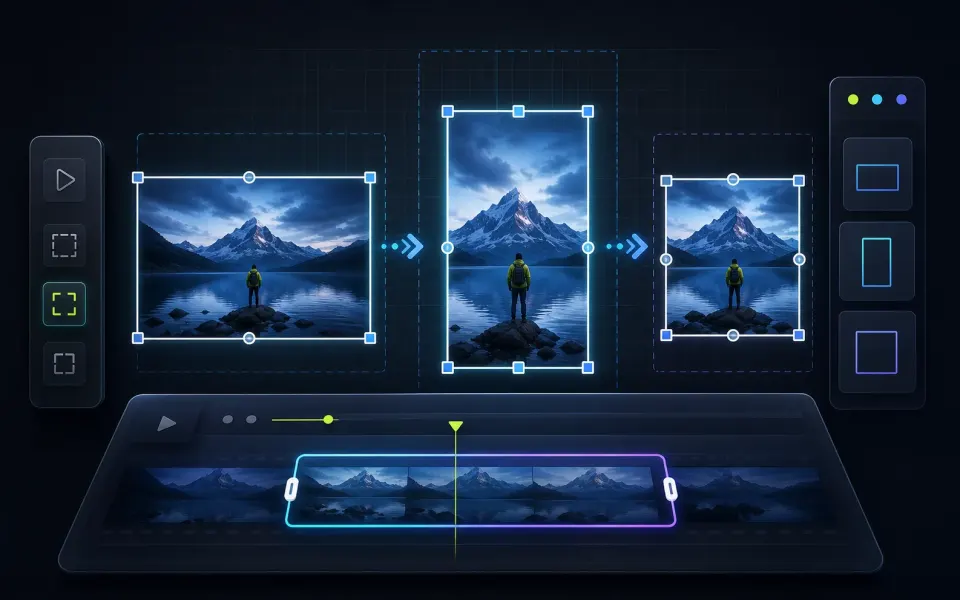
Change video dimensions for landscape, portrait, square, or original-ratio outputs.
Trim Video
Trim Video
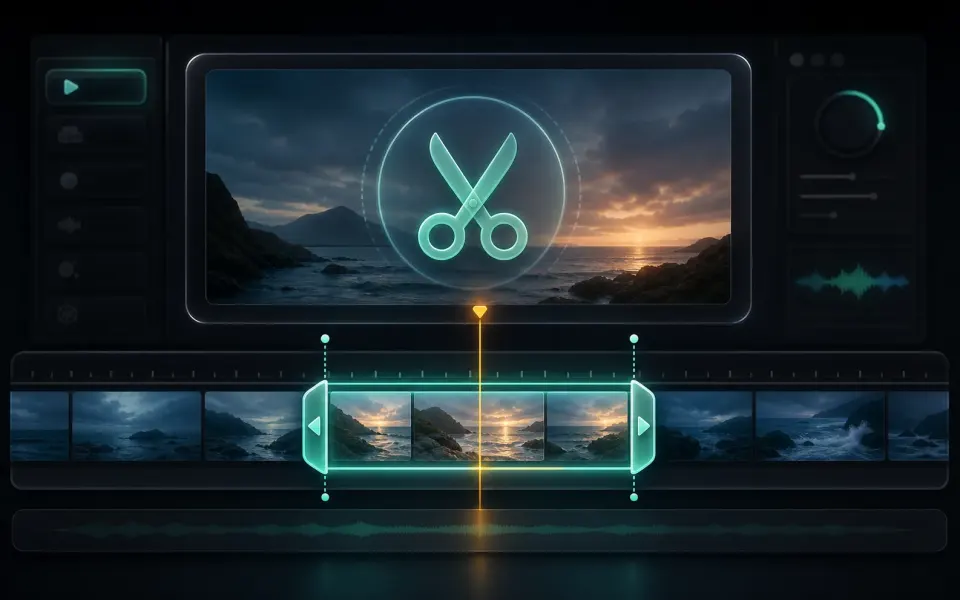
Cut a clip by choosing exact start and end times before exporting a new MP4.
View all tools
ArtPlayer logoArtplayer

Free browser media tools for editing, converting, recording, and preparing video, audio, subtitles, and AI-assisted results.

Email us: support@artplayer.org Buy Me a Coffee

Video tools

Trim VideoCompress VideoResize VideoVideo ConverterCrop VideoMerge VideoScene SplitterX Video DownloaderFacebook Video Downloader

Audio tools

Trim AudioExtract AudioConvert AudioJoin AudioAdd Audio

Subtitles and AI

Video UpscalerSpeech to TextVocal SeparationAdd SubtitlesVideo to TextSubtitle Editor

Image

Image UpscalerGIF UpscalerAI Image ExpanderRemove WatermarkOld Photo RestoreRemove BackgroundImage Upscaler

Site

Free Video ToolsArtPlayer EditorSubtitle EditorBlogAboutFAQDocs
© 2026 ArtPlayer. All rights reserved.
PrivacyTermsCookiesAcceptable UseCopyright

Cookie choices

ArtPlayer uses necessary cookies for app security and preferences. Optional analytics and advertising cookies only run when you allow them.

Cookie Policy