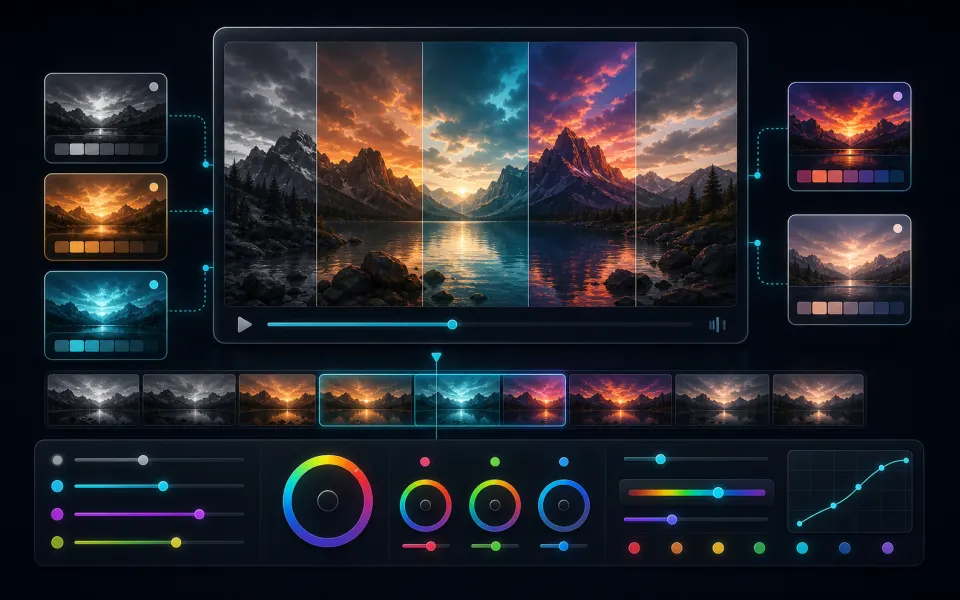
Smoothed camera path
Motion is measured with OpenCV feature tracking and smoothed so handheld shake is reduced.
Browser video stabilizer
Reduce camera shake and smooth handheld footage entirely in your browser, then export an MP4 with the original audio.
Choose how the camera motion should look.
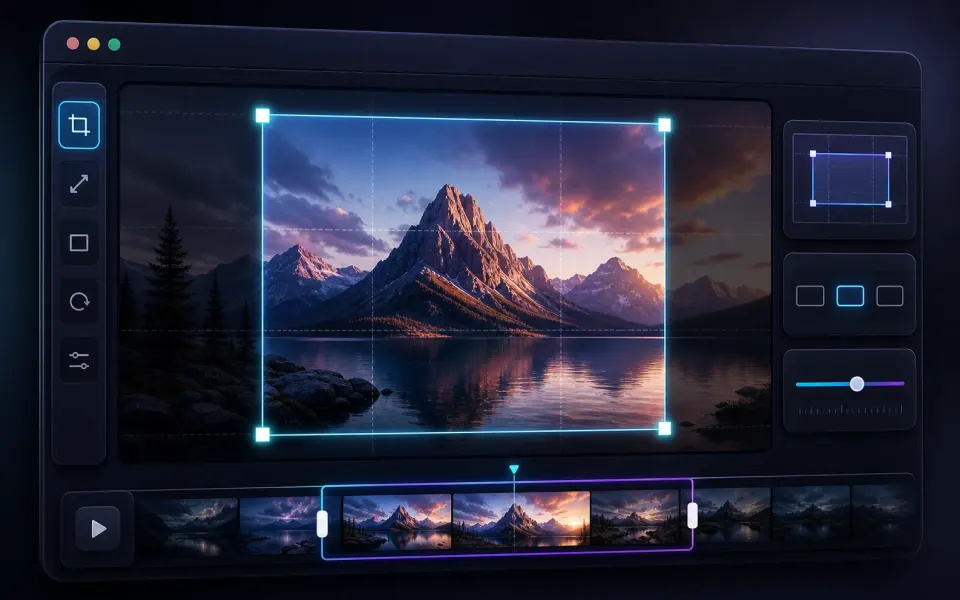
Crop the frame or stretch only its outer edges.
Straighten tilted frames.
Three steps to finish the browser workflow.
Choose the source file for Video Stabilizer from your device.
Review the preview and tune the options for the result you want.
Check the finished result, then download the exported file.
Core details about privacy, browser support, output, and practical limits before you start.
Motion is measured with OpenCV feature tracking and smoothed so handheld shake is reduced.
The original audio track is copied through without re-encoding.
Frames are processed in your browser with Mediabunny and OpenCV.js. Nothing is uploaded.
Find quick answers about privacy, browser support, exports, and what to try when a file is heavy.
This browser tool processes the selected media locally on this device. The file is not uploaded to ArtPlayer servers for this workflow.
No. ArtPlayer browser tools do not add watermarks to exported files.
The work runs in your browser, so speed depends on your device, browser, memory, source size, and the export settings needed for the result.
Recent Chrome, Edge, and other modern Chromium browsers usually work best for heavier browser media processing.
Try a smaller source, close other heavy tabs, reduce resolution or duration first, and keep the tab open until the export finishes.
It works best on short handheld or action-camera clips. The supported duration depends on resolution, frame rate, device memory, and browser capability; severe shake or fast foreground motion may only be reduced.
No. The tool smooths the camera path and either stretches the outer edges or crops the frame. Strong shake, motion blur, parallax, and large moving subjects may remain visible.
This setting applies to Crop to fill. Start with 10% to preserve detail and composition; use 20% or 30% only when stronger correction matters more than cropping.
Crop to fill may zoom in within the selected limit. The default Stretch edges mode keeps the center clearer and continuously stretches only the outer area.
Continue editing with nearby ArtPlayer tools that work with the same local, browser-first workflow.
Cookie choices
ArtPlayer uses necessary cookies for app security and preferences. Optional analytics and advertising cookies only run when you allow them.
Cookie Policy